| SATELLITE SUPPORT https://www.sat-support.tv/forum/ |
|
| ODR - Open Dreambox Rescue https://www.sat-support.tv/forum/viewtopic.php?f=228&t=62301 |
Page 1 of 1 |
| Author: | mihaip [ 04 Nov 2026, 20:13 ] |
| Post subject: | ODR - Open Dreambox Rescue |
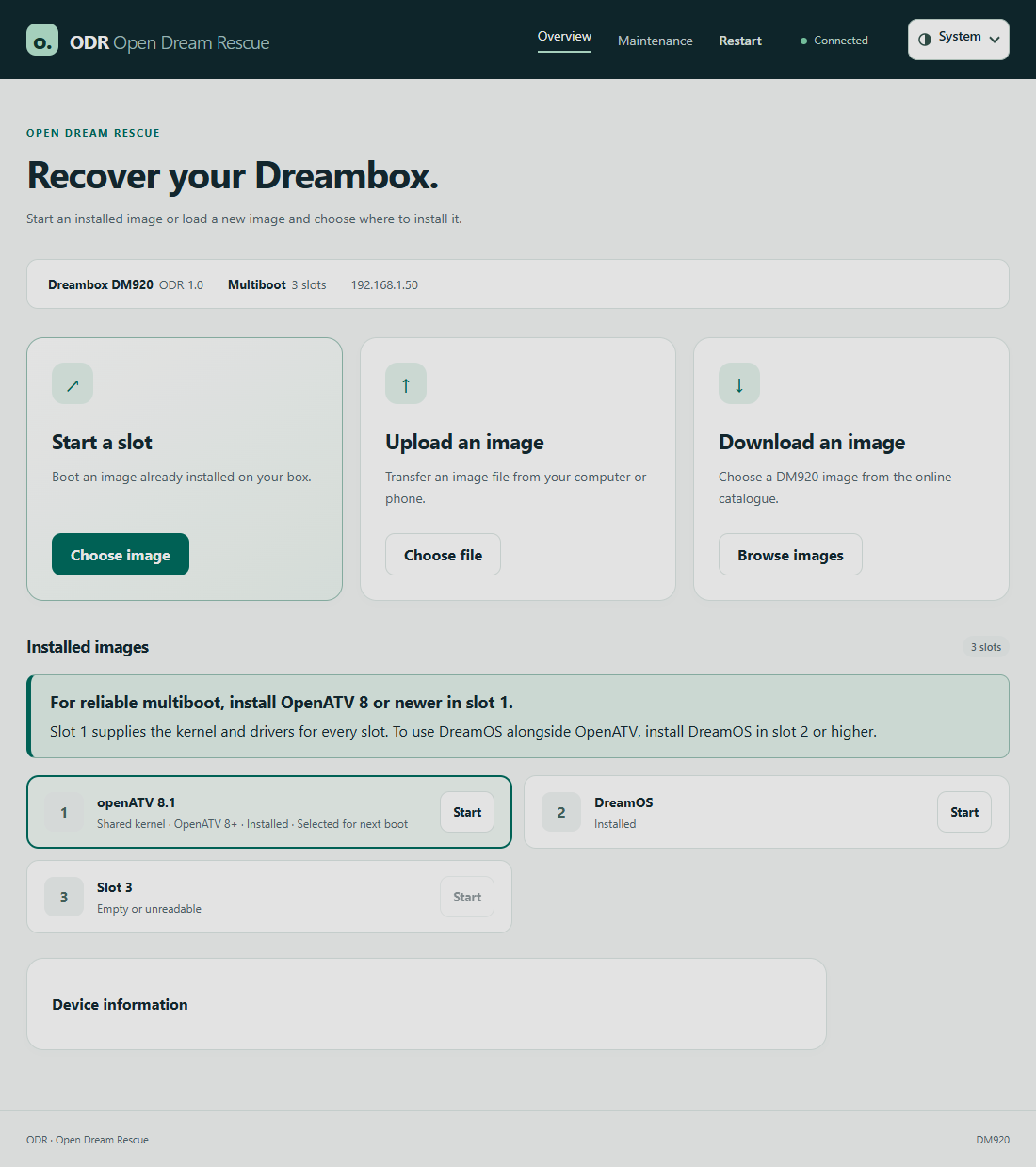
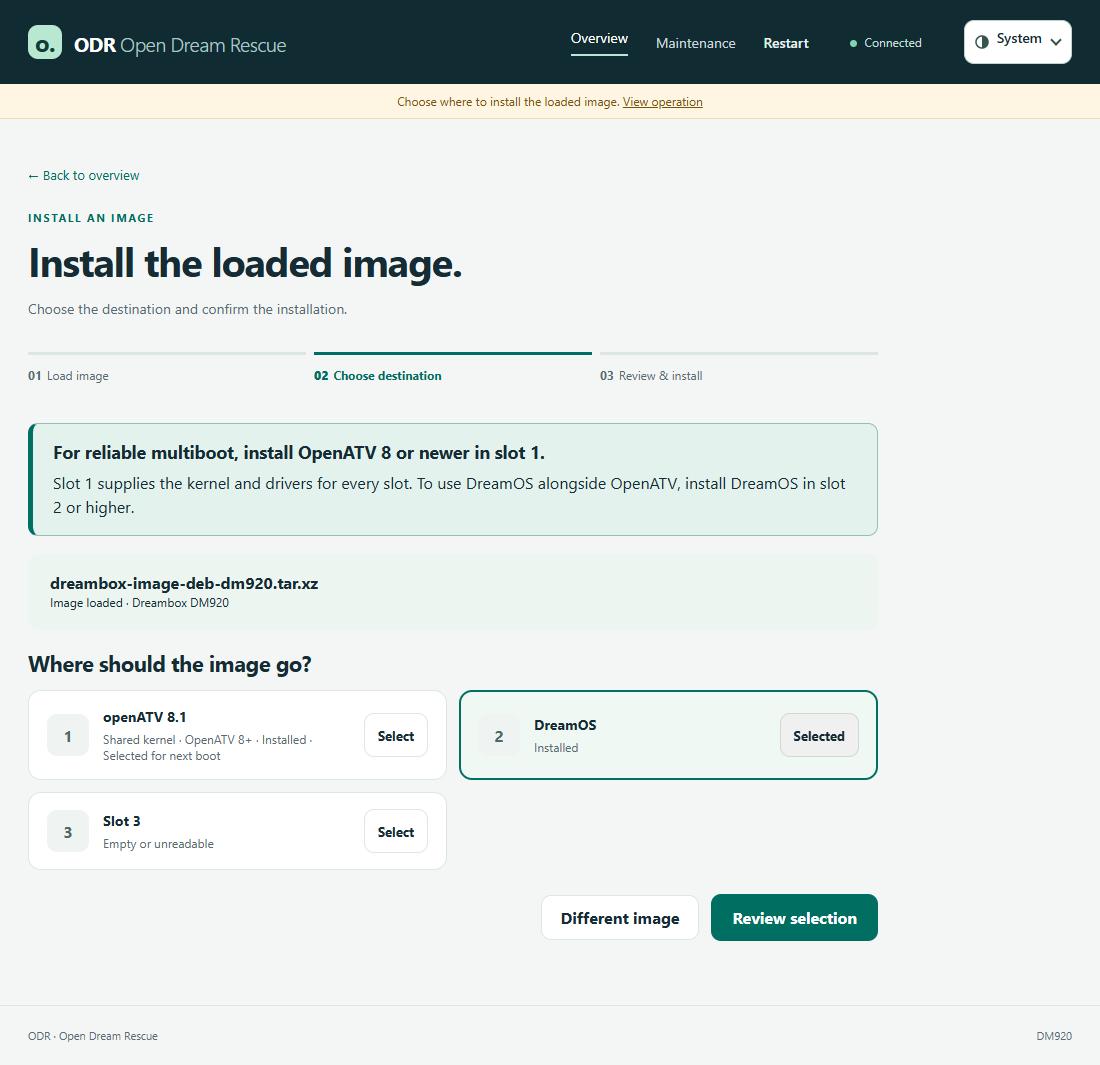
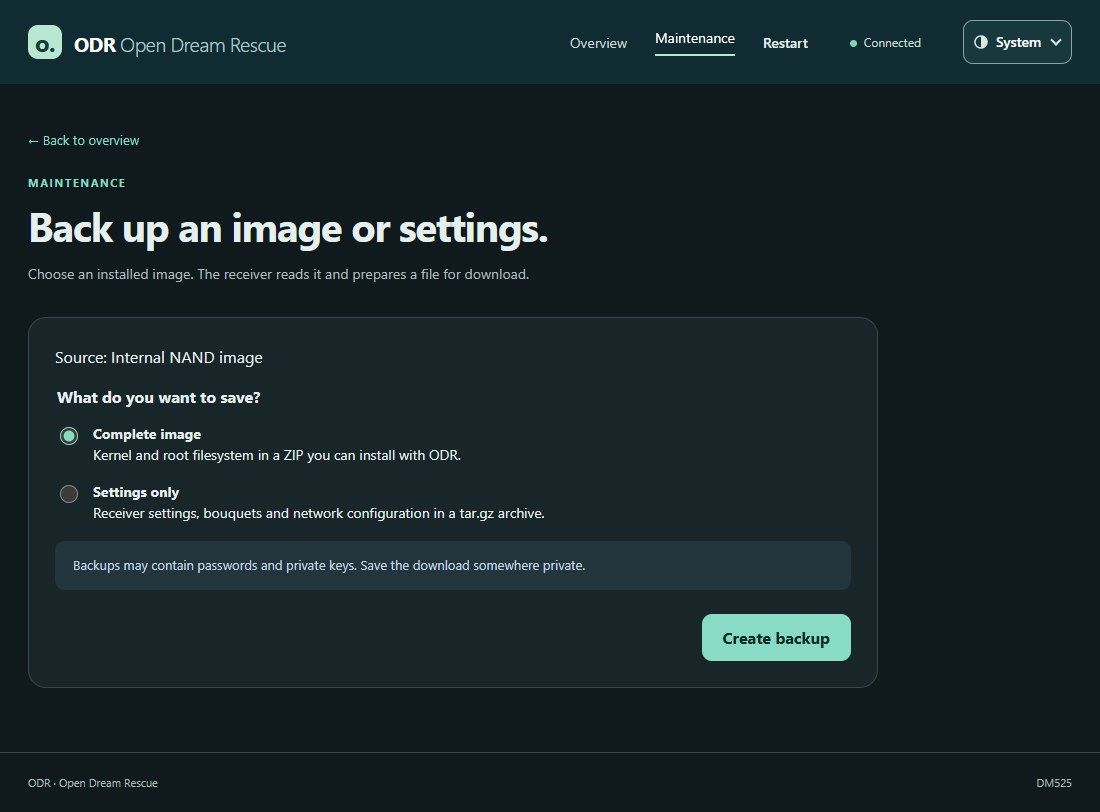
ODR - Open Rescue Dreambox , este un integrator al procedurilor de recovery pentru generatia de Dreambox echipata cu procesoare Broadcom : DM520, 525 si 520 mini dar si pentru cele mai noi cu Multiboot DM900, DM920, DM7080, si DM820. ODR este o interfata WEB prietenoasa ... I-i voi lasa pe @Captain si @WXbet sa va povesteasca fara intermediari .... ODR 1.0 for the Dreambox Gen2 Open Dream Rescue (ODR) gives the older Broadcom Dreamboxes a new Rescue Loader. If your image no longer launches, you can still access ODR via Rescue Mode. On your TV, you can use the Dream remote to launch an installed image, or use INFO to open device information. To install and back up, use the browser on your PC, tablet or mobile phone. The menus are in English. Which boxes are supported? DM900, DM920, DM7080, and DM820 – ODR detects an existing multiboot based on the STARTUP files. Then you can choose the target slot. For a single image, ODR displays the internal image as the target. DM520, DM525 and DM520mini – These models use the same Rescue. ODR installs a single image into the internal NAND flash. External USB multiboot slots are not available here. ![]() Switch from the previous Rescue to ODR Start your normal DreamOS or community image, connect the box to the home network via LAN and log in as root via Telnet or SSH. With this one- liner, you load the common installer from GitHub and start it directly on the box: Code: wget -O /tmp/install-odr.sh https://raw.githubusercontent.com/oe-alliance/bootmenu/master/install-odr.sh && sh /tmp/install-odr.sh If your image uses curl: Code: curl -fL https://raw.githubusercontent.com/oe-alliance/bootmenu/master/install-odr.sh -o /tmp/install-odr.sh && sh /tmp/install-odr.sh If you only want to check first, add --check at the end of the selected line. The installer recognizes the model, loads the associated rescue and checks the file. At Apply this plan?, y starts the installation. Enter aborts. The installer backs up the previous rescue area, writes ODR and checks the written data. Leave the box on until the success message is announced. Your installed image will be preserved. Copy recovery.bin and SHA256SUMS from the new subfolder of /home/root/odr-backups/ to the PC. This is the backup of the previous Rescue Loader. There are separate backups for your images and settings. If there is an HTTPS error in the old DreamOS, check the date and time and try the other download command. Alternatively, you can use the Installer Download it as a raw file on your PC, copy it as /tmp/install-odr.sh to the box and check it there with sh /tmp/install-odr.sh --check. For the subsequent rescue download, the box needs a working HTTPS connection to GitHub. Start ODR and install an image The installation does not trigger a reboot. If your running image offers to-the-rescue, this command will start the box directly into Rescue. Alternatively, shut down the box and press and hold the front power/standby button when switching on until rescue mode appears. On the DM7080, continue to press and hold "Enter setup?". Open the http:// address displayed on the TV on the same home network. Open Upload to image → Choose file for a local file or Download to image → Browse images for the online catalog. Choose an image for your model. You can transfer matching team ZIPs and DreamOS rootfs archives directly. For the DM52x, OpenATV provides the _flash.zip with kernel and UBI image. After loading, select the target slot in Multiboot. With the single image, you confirm the internal goal. The previous content of this target will be deleted before writing. After successful installation, you can start the image. If ODR reports a flash error after the deletion begins, do not start this target until you have successfully installed a full image there. ![]() Important for Multiboot: OpenATV 8 or newer in slot 1 On DM900, DM920, DM7080 and DM820, all slots use the same kernel. Slot 1 also provides the appropriate drivers. If you want to use DreamOS alongside OpenATV, install it in slot 2 or higher. When flashing a guest slot, the common kernel is preserved. As before, you set up a new multiboot in the appropriate Enigma2 image. If you explicitly want to install DreamOS as a single image in slot 1, you have to release the warning. ODR then writes the DreamOS kernel and removes the multiboot boot configuration. The guest images remain saved, but can no longer be started as slots. The separate command Maintenance → Remove multiboot, on the other hand, retains slot 1 and deletes the set up guest images including STARTUP files. Save all the guest images you want to keep beforehand. Backups, updates and feedback Under Maintenance → Backups you can download a complete image or just the settings to your PC. On the DM52x, the backup is transferred directly to the browser. Let the download run to the end. For future ODR updates, see Maintenance → Device firmware. ![]() Is an image missing from the download catalog or is a link broken? Report in the Issue Tracker Model, image name, link, and the message under Details. Image teams can make their download via pull request in the images file of their model folder in oe-alliance/bootmenu . In the event of a Flash problem, the target (internal image or slot number) and the exact wording of the error also help us. |
|
| Author: | mihaip [ 05 Nov 2026, 19:00 ] |
| Post subject: | Re: ODR - Open Dreambox Rescue |
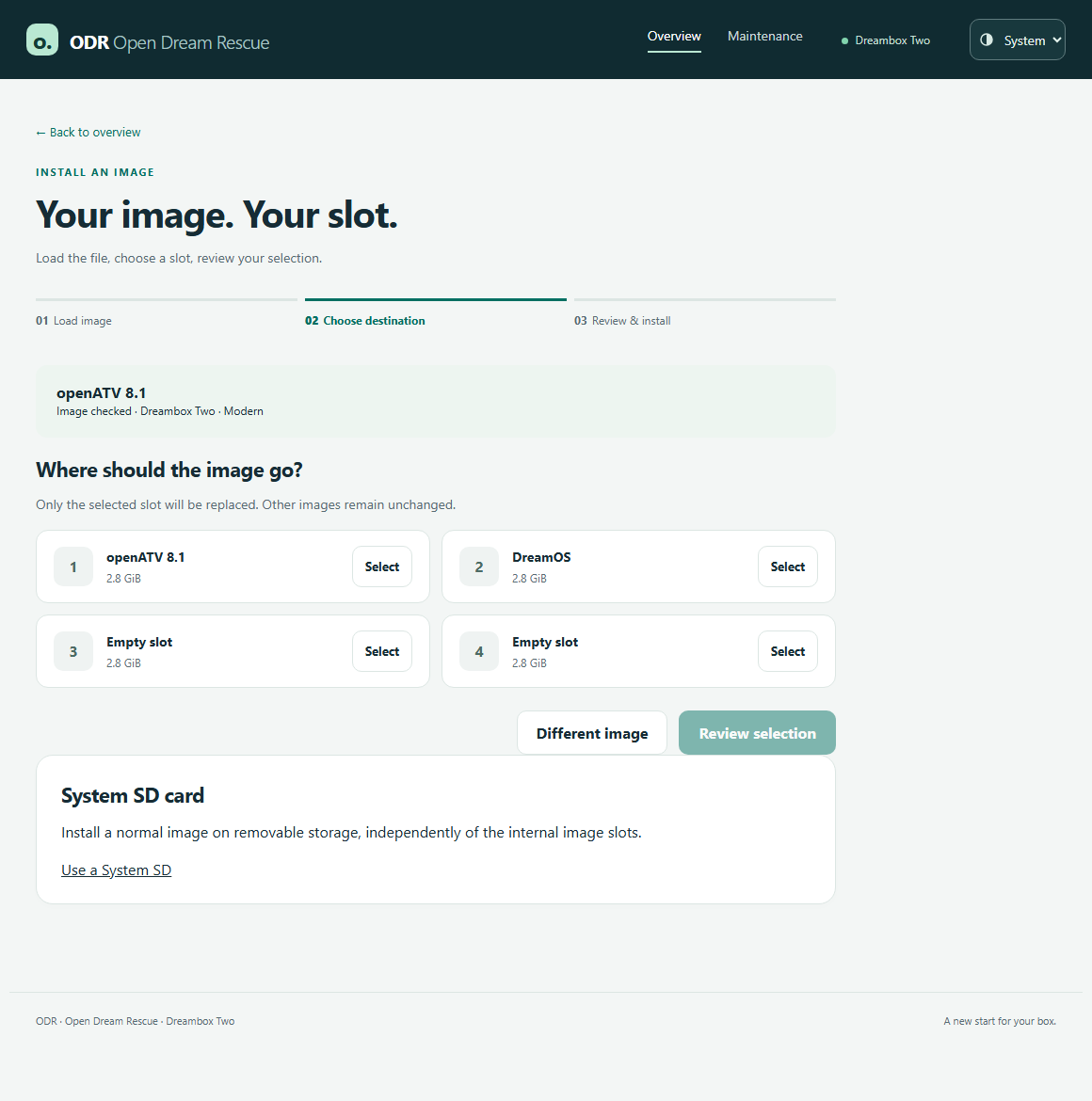
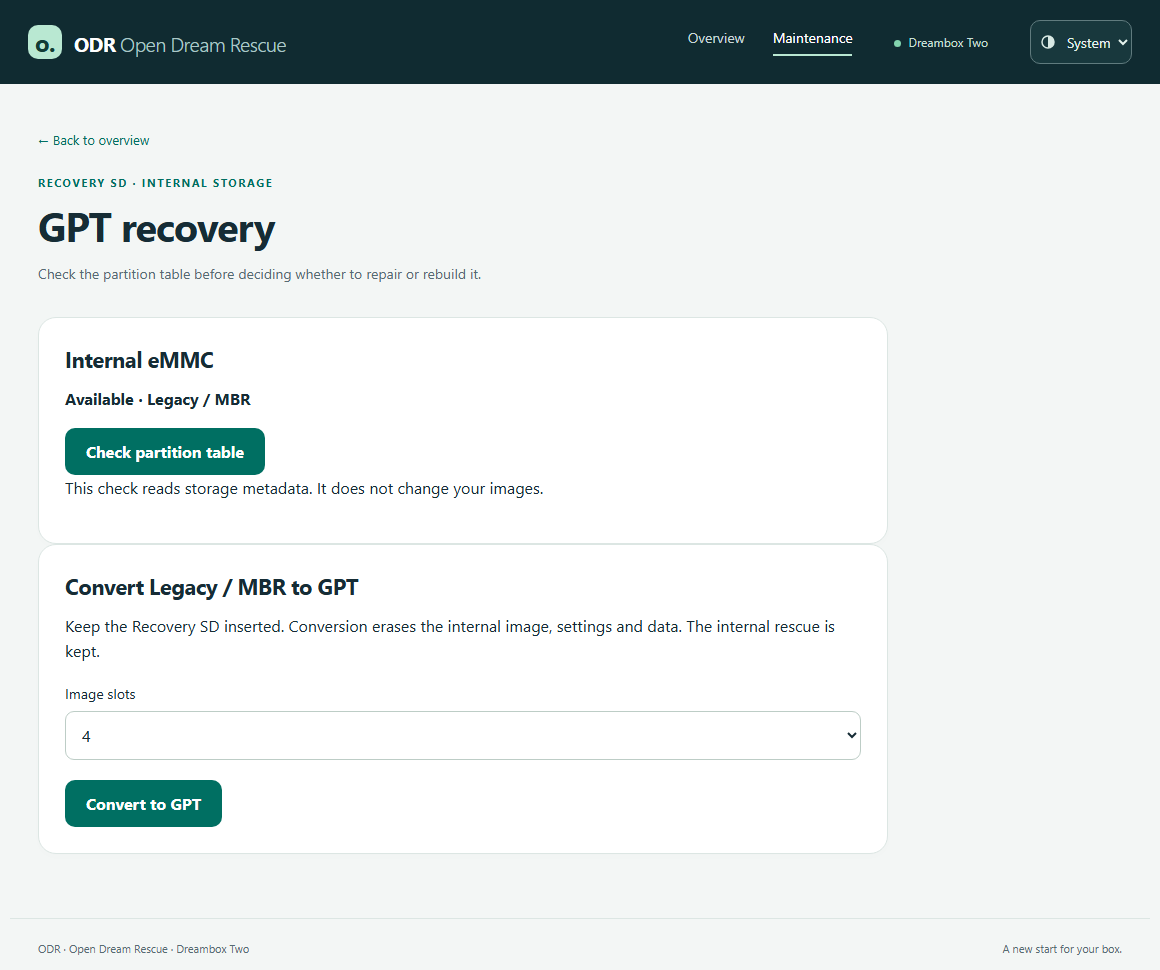
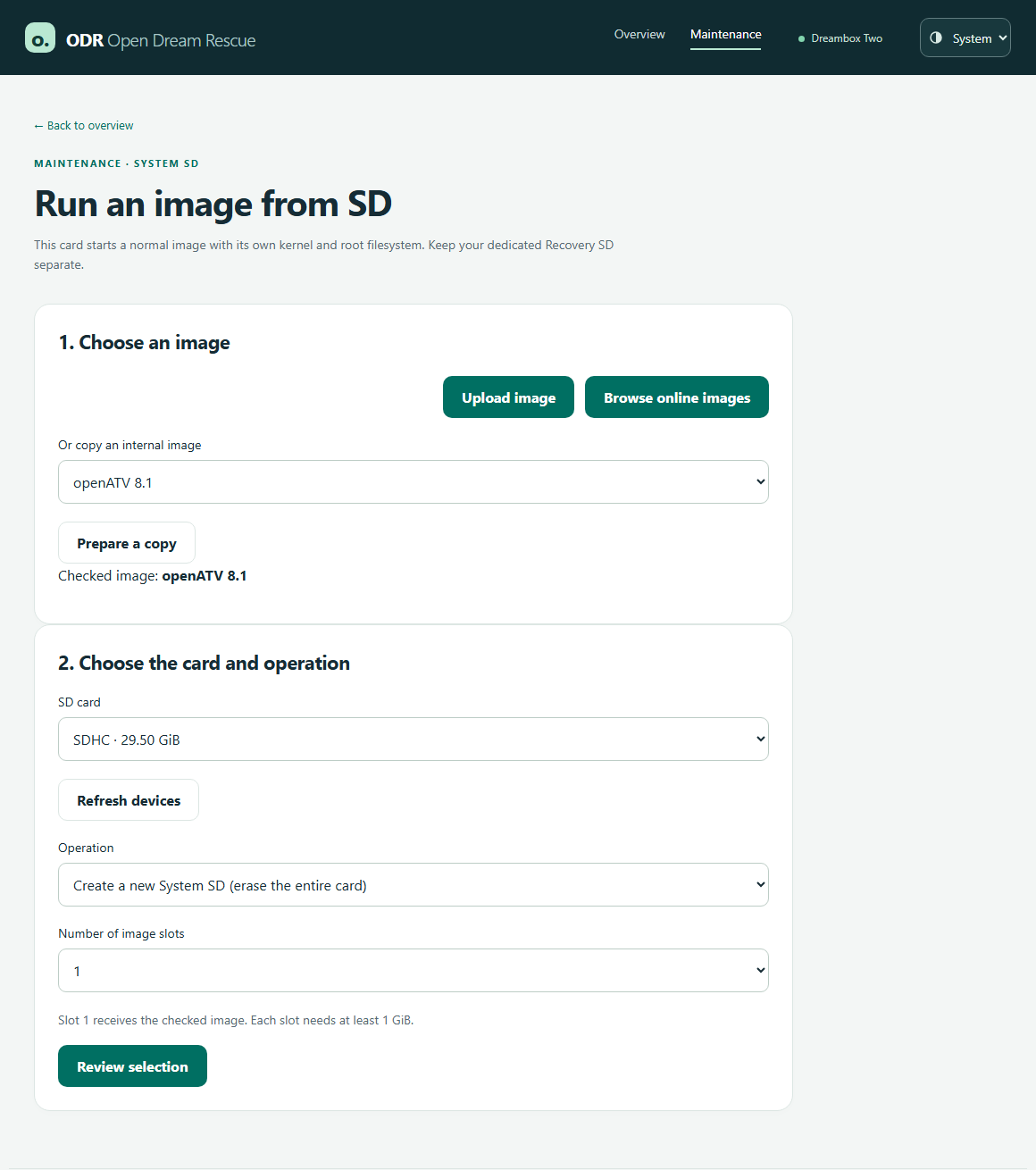
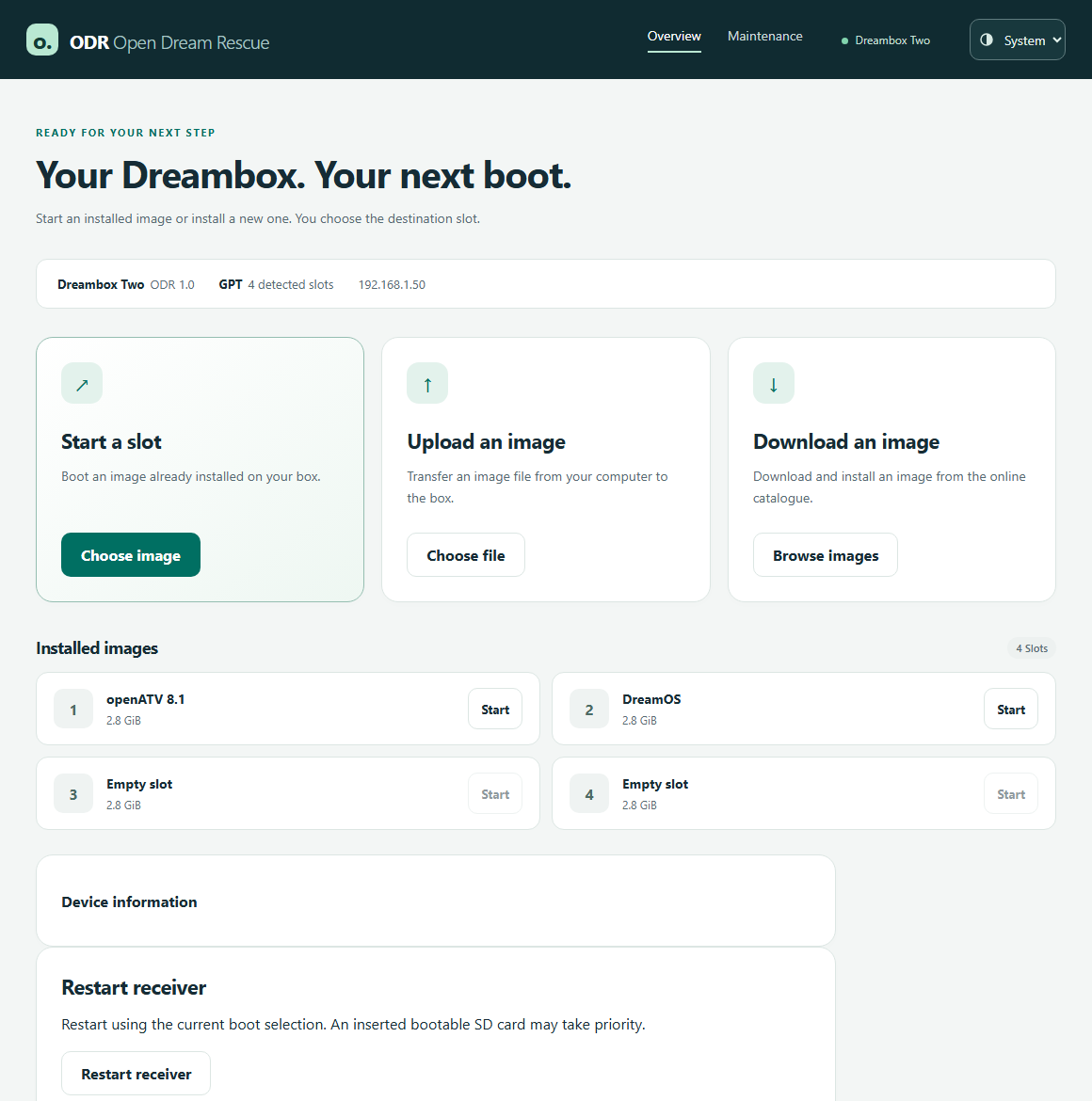
ODR for Dreambox One / Two @Captain Open Dream Rescue (ODR) is the community-developed replacement for the old Dreambox Rescue Loader. ODR starts regardless of the installed TV image. This allows you to install a new image even if Enigma2 no longer starts. You operate ODR on the TV with the remote control or in the browser on your PC, tablet or mobile phone. The menus have the same name on all devices and are in English. 1. Replace the old Rescue Loader with ODR Start the box with its normal, internally installed DreamOS or community image. Connect them to your home network via LAN. On your PC, open a Telnet connection to the IP address of the box (e.g. with PuTTY, connection type Telnet, port 23). Log in as root with the password of your image. If Telnet is disabled in the image, the same command will work in an SSH session or the local Linux console. Copy this line into the Telnet window and press Enter. She loads the installer directly from GitHub and launches it on the box: Code: wget -qO- https://raw.githubusercontent.com/oe-alliance/bootmenu/master/install-odr.sh | sh If your image has curl instead of wget, use: Code: curl -fsSL https://raw.githubusercontent.com/oe-alliance/bootmenu/master/install-odr.sh | sh The installer detects One or Two, checks the appropriate ODR and compares the installed front processor firmware with the offered version. If an update is necessary, it is in the displayed plan. Confirm Apply this plan? with y. Enter alone breaks off. Before overwriting, the installer backs up and checks the previous Rescue Loader. Keep the power plugged in until the final message. The installer does not trigger a restart. The backup is located under /home/root/odr-backups/ in a subfolder with model and date. Copy recovery.bin and SHA256SUMS to your PC, especially before a later GPT switch. These files back up the Rescue Loader. You save TV images and settings separately. Old DreamOS and HTTPS If no output appears after the wget command, take the curl line or remove the q from -qO- to make wget show the error. Check the date, time, and network. For an expired certificate chain or a wget warning that certificates are not being checked, use this line. It loads the same file from GitHub and only starts it if the checksum is right: Code: ( f=$(mktemp /tmp/odr.XXXXXX) || exit 1; trap 'rm -f "$f"' 0; u=https://raw.githubusercontent.com/oe-alliance/bootmenu/master/install-odr.sh; (curl -q -kfL -o "$f" "$u" || wget --no-check-certificate -O "$f" "$u") && printf '%s %s\n' d6a29d59af3992e51d6ada45cc1eb9b577c35da81bc1110d7c856375f2d925d1 "$f" | sha256sum -c - && sh "$f" ) In case of a different checksum, use the current version of this article. If neither program can establish a TLS connection to GitHub, the HTTPS client in the image must first be updated or another installed image must be started for installation. For a pure test run, replace the final sh with sh -s -- --check. 2. Start ODR and install an image For internal rescue, take a bootable SD from the switched off box. Press and hold the front button when turning it on until Rescue Mode appears. The web address is on the TV. Open exactly this address with http:// in the browser of a device on the same home network. Use a LAN cable for the first connection. If the Gigabit LAN is unstable, you can select 100 Mbit/s under Maintenance → Ethernet settings. ![]() Start an existing image – Under Start a slot → Choose image, select the desired slot and confirm the start. This can also be done on the TV with the remote control. Image from PC or mobile – Under Upload to image → Choose file, select the archive for your model. You can upload a standard team ZIP with subfolder and packed root file system directly. Suitable older DreamOS archives, such as .tar.xz or .tar.bz2, are also possible. Leave the browser tab open during the upload. Image from the Internet – Under Download an image → Browse images select an offer and then Download image. The box loads it itself. ODR checks the loaded image. With GPT, you then select the target slot and confirm that its previous content may be replaced. With Legacy/MBR, there is only one internal image. Here you come directly to the confirmation of this one goal. After successful installation, you can start the new image immediately or go back to the overview. ![]() 3. Create and check the recovery SD The Recovery SD is your separate emergency card. It contains ODR and the boot files for your model. One card for the One belongs to the One, one for the Two to the Two. When booting from the card, ODR runs in RAM and shows the state of the internal memory. Insert an SD card into the internal ODR, the contents of which can be erased. Open Maintenance → Recovery SD card → Prepare SD card. Check card name and size. If necessary, click on Refresh devices. By default, ODR uses the compatible Rescue installed. You can choose the online version via Download ODR from the online catalogue. Confirm the deletion of the card and click Create SD card. Wait for the success message. Turn off the box, leave the card inserted and turn it back on without pressing a button. Only when Recovery SD is on the TV or browser are you in the right mode for working on the internal memory. Label the card model and "Recovery" and keep it for emergencies. ![]() ![]() 4. Legacy/MBR, GPT, and Data Loss Protection You can continue to work with Legacy and an internal image. If you want multiple internal image slots, back up your data first. Under Maintenance → Backups & diagnostics → Create a backup, you can save a complete image or just the settings for the slots offered. Then click Download backup. The copy in RAM is lost on reboot. To make the switch, start from the tested Recovery SD. Select Open GPT recovery → Check partition table. This check only reads the condition. If the legacy layout is detected, you can select Convert to GPT, set the number of internal slots, and confirm the deletion. All internal images, settings and data will be lost during the changeover. The internal rescue is maintained. After the success message, remove the recovery SD and select Restart into internal rescue. Now you can fill the empty slots with images. ODR only offers the conversion from the recovery SD. This way, the internal eMMC is free for repartitioning, and you already have a bootable emergency card before the first write access. The normal user path leads from MBR to GPT. There is deliberately no menu item back from GPT to MBR in normal operation. This would rewrite the factory layout and destroy the GPT slots and their data. The provision is reserved for service. If only the GPT boot menu is damaged, you can check the suggested entries in the internal ODR under Maintenance → Repair boot menu → Preview boot menu before saving them. ![]() 5. System SD – the TV image on its own card A system SD contains a normal TV image with its own kernel and file system. To do this, you take a second card. You can store the recovery SD separately. A system SD is suitable if you want to save the internal memory or the internal image area no longer works reliably. The model-specific early boot files (FIP) are also on the card. The image operation of SD has been tested. Whether a box with completely unreadable eMMC already loads its first boot stage from SD has not yet been confirmed on such a device. Open Maintenance → System SD card → Use a System SD. Upload a suitable image, choose an online image or create a copy from an internal slot offered with Prepare a copy. Then select the separate destination card and create a new System SD. Depending on capacity, one to eight slots are possible. When you create it, the card is deleted and slot 1 is filled with the checked image. Review selection allows you to check and confirm the goal. After Your System SD is ready, turn off the box and turn it back on with the System SD inserted. Later, you can replace a single SD slot or change the card's boot slot on the same page. ![]() 6. Update ODR, report bugs, and offer images If ODR is already installed, open Maintenance → Device firmware → Check for updates. Under Update Open Dream Rescue you can download, check and then install the appropriate update. On the same page, you'll find deals on front processor and original submarine. For a normal ODR update, the ODR entry is sufficient. Is an image missing in the download area or is a link broken? Report model, image name, download link, and the message under Details in the Catalogue issue tracker. An error in the started image belongs to the respective image team. In the event of an error during installation, it also helps to specify whether the target was legacy, a GPT slot or a system SD. Image teams can submit their offer via pull request: dreamone/images and dreamtwo/images. Only enter models for which you build a suitable image. Each line contains a name without spaces and an HTTPS link that provides the image archive without registration. Underscores appear as spaces in ODR. The files can remain on the team's server. Example (replace address with your own download): Code: Teamname_Stable https://downloads.example.org/dreamone/teamname-dreamone.zip |
|
| Author: | mihaip [ 05 Nov 2026, 19:14 ] |
| Post subject: | Re: ODR - Open Dreambox Rescue |
Daca va intrebati de ce tot acest balamuc ... inca nu va pot da o explicatie convingatoare ! cel mult din ce am cules si eu din zbor ... - la Dream Gen2 (DM900,920) Multiboot este functional dar sunt numeroase situatii in care o imagine cu probleme aflata la prima executie va lasa agatzat in ea ... pentru a iesi aveti nevoie de un suport de recovery ! Este mai simplu aici ... ne-am descurca si fara ODR ! - la Dream NewGen (Dream One si Two ) lucrurile sunt mai complicate 1. de o buna bucata de vreme procedurile de instalare GPT Multiboot nu mai functioneaza ! nici cele DreamOS nici cele OpenATV 2. la vremea primei variante de GPT MB , din motive care nu aveau legatura cu realitatea fizica , s-a decis ca numarul partitiilor GPT sa fie 4 ! ocupa 8 Gb EMMC desi masina are 16 Gb ... actuala versiune corecteaza acesta limita si avem 8 partitii la dispozitie 3. Procedurile de recovery GPT DreamOS au ramas in gratia toanelor unui server privat ! care cand merge cand nu merge si nu garanteaza recuperarea ! Eu cred ca fie si asa de complicat si poate greoi, daca putem rezolva problema la noi in ograda , eu ma simt mai in siguranta, desi nici pana acum nu mi-a tremurat curul ca se va intampla o catastrofa ! |
|
| Page 1 of 1 | All times are UTC + 2 hours [ DST ] |
| Powered by phpBB © 2000, 2002, 2005, 2007 phpBB Group http://www.phpbb.com/ |
|